No, it is not Monday. lol
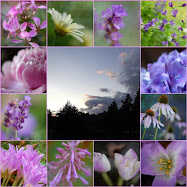
I have had several requests for instructions on making photo collages or mosaics, so I thought I would post a little tutorial here. For the past several weeks, I have been hosting a meme called Mosaic Monday. Each week, about 50 wonderful bloggers join the party. So far, subjects have included flowers, food, decorating, travel, scenery, butterflies, family and pets. Really, any subject that you enjoy photographing can make a great mosaic.
There are lots of options for making photo collages. You can do a Google search for "photo collage" and find a bunch. But here is what I do: I upload my photos to flickr, the photo-sharing website. Then I use a site called Big Huge Labs to create mosaics.
I strongly suggest that you sign up for an account at flickr, the photo-sharing website. I believe that the first 200 photos that you upload can be stored for free. After that, it costs $24.99 a year.
Once you have your photos on flickr, go to Big Huge Labs and find the Mosaic Maker. Then let the fun begin. ;)
Here are some directions to make the layout that I use most often in my mosaics -- a large central picture, with smaller pictures surrounding it.
At the top of the page, you will see the command "Choose Layout." Click on the drop down menu and choose the last option -- 4X4 with large center.
You can choose the colors for your frame by clicking on the white boxes that say background color and border color. A color wheel will appear, and you may scroll over it and click on any color you like.
For "Space between Images" I usually choose 2 pixels which gives a rather narrow border, but this one is totally subjective -- use whatever you like.
You will be asked to choose 13 photos to fill this layout. Note that the large center photo is No. 1, and then they go across from the top row, second row, etc.
Once you have chosen your photos, click "Create." If you wish to edit it, click on "Edit" at the top of the mosaic. Then you can go back and delete or change any photos, background colors, etc. When you are satisfied, click on "Save" at the top of the page.
At the top of the page, you will see the command "Choose Layout." Click on the drop down menu and choose the last option -- 4X4 with large center.
You can choose the colors for your frame by clicking on the white boxes that say background color and border color. A color wheel will appear, and you may scroll over it and click on any color you like.
For "Space between Images" I usually choose 2 pixels which gives a rather narrow border, but this one is totally subjective -- use whatever you like.
You will be asked to choose 13 photos to fill this layout. Note that the large center photo is No. 1, and then they go across from the top row, second row, etc.
Once you have chosen your photos, click "Create." If you wish to edit it, click on "Edit" at the top of the mosaic. Then you can go back and delete or change any photos, background colors, etc. When you are satisfied, click on "Save" at the top of the page.
I hope this helps all of you who want to learn how to make a mosaic, and I also hope to see you all at Mosaic Monday. :)
*****
I will be taking a few days off to recharge my batteries. I hope to be posting again on the 26th, when I will have Mr. Linky up for Mosaic Monday.
Enjoy your week, dear bloggers! :)





 Posts
Posts